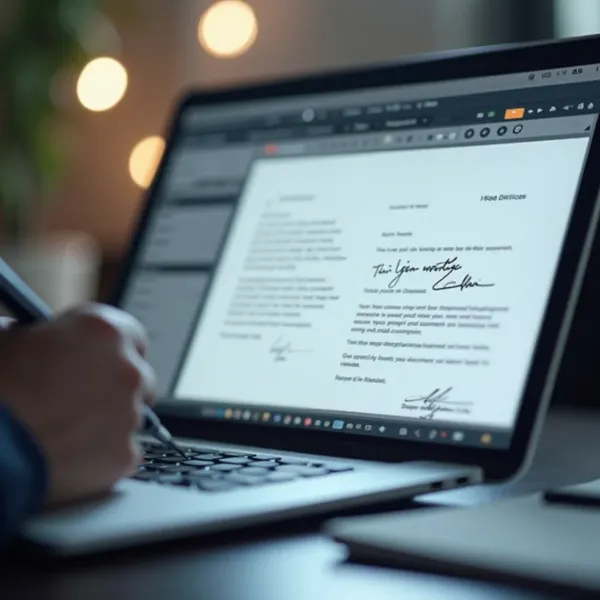
Signing documents digitally is more important than ever, whether for business or personal use. If you're wondering how do you digitally sign a PDF, you're not alone. Digital signatures offer a secure and reliable way to sign documents without the need for printing or scanning. This guide will show you exactly how to digitally sign a PDF, whether you’re using a computer, smartphone, or online tools. Let’s dive into the process and learn how easy it can be to add your signature digitally.
What is a Digital Signature on PDFs?
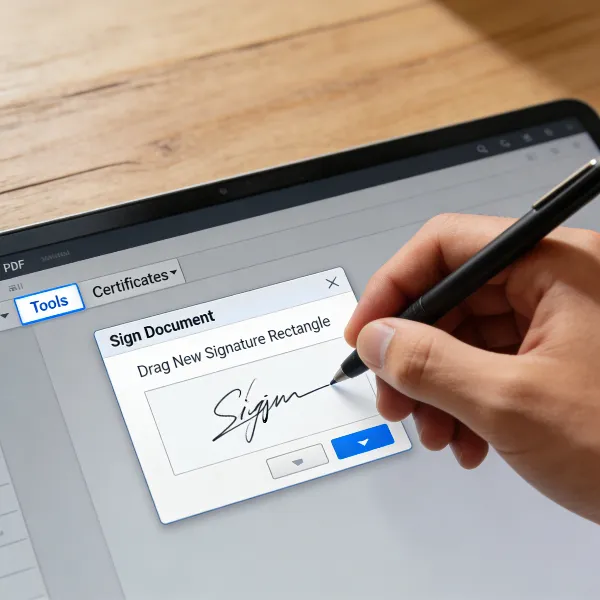
A digital signature is an electronic form of a signature that ensures the authenticity of a document and verifies the identity of the person signing. Unlike a simple scanned image of a signature, a digital signature uses encryption to secure the document and the signature, making it tamper-proof.
The key benefits of using a digital signature on PDFs include:
- Increased Security: The encryption used makes it difficult for unauthorized individuals to tamper with your signed document.
- Trust and Legitimacy: Digital signatures ensure the recipient that the document hasn’t been altered after it was signed, which is particularly important for contracts and legal agreements.
- Legally Binding: In many countries, digital signatures are recognized as legally valid, providing the same legal weight as a handwritten signature.
The digital signature process uses a public and private key pair, with the private key being used to sign and the public key used to verify the signature. This makes digital signatures a reliable choice for secure document signing.

How to Sign a PDF Digitally: 4 Easy Methods
There are various ways to digitally sign PDFs depending on what device or software you prefer. Here are four common and simple methods:
Use Adobe Acrobat Online or Desktop
Adobe Acrobat is one of the most trusted PDF tools for signing documents. Whether you’re on the desktop version or using Adobe Acrobat online, you can easily sign your PDF with just a few clicks. Here’s how:
- Open Adobe Acrobat: Download the software or visit the Adobe Acrobat online website.
- Open Your PDF: Choose the PDF you want to sign from your files.
- Select 'Sign': Go to the “Tools” menu and select “Fill & Sign.”
- Add Your Signature: You can either type, draw, or upload an image of your signature.
- Place the Signature: Drag your signature to the correct spot on the document.
- Save the Signed Document: Once you’ve signed it, simply save the PDF.
Adobe Acrobat also provides an advanced option to create a digital certificate for further authentication, which is ideal for business and legal purposes.
Sign a PDF in Web Browsers (Microsoft Edge)
You don’t need additional software to sign a PDF if you’re using a modern web browser like Microsoft Edge. Here’s a simple guide:
- Open the PDF: Right-click the PDF file and select “Open with Microsoft Edge.”
- Click 'Draw': In the PDF toolbar, select the “Draw” tool.
- Sign the Document: Use your mouse or stylus to draw your signature directly on the document.
- Save the PDF: After signing, click “Save as” to keep the signed PDF.
This method is quick and great for signing a PDF without needing extra software.
Sign PDFs with Online Tools (Like DocuSign, Digital IDs)
For those who need a secure and verified way to sign documents, online platforms like DocuSign offer a reliable option. Here’s how you can use it:
- Upload the PDF: Go to DocuSign.com and upload the document you need to sign.
- Create an Account: If you don’t already have one, create a free account.
- Place Signature Fields: Drag and drop the signature fields onto the PDF where you want your signature to appear.
- Sign the Document: You can either draw your signature, type it, or upload an image.
- Verify Your Identity: DocuSign may ask you to verify your identity before signing.
- Finish: Click “Finish” to complete the signing process.
DocuSign is often used for legal contracts or business agreements, offering security and compliance with various regulations.
Use Mobile Apps to Sign PDFs for iOS/Android
Signing PDFs on the go is made easy with mobile apps like Adobe Fill & Sign. Here’s how to use it:
- Install the App: Download Adobe Fill & Sign or any similar app from the App Store or Google Play Store.
- Open the PDF: Launch the app and open the PDF you want to sign.
- Create Your Signature: Tap the “Signature” icon and draw or type your signature.
- Position the Signature: Drag your signature into place on the document.
- Save the Signed PDF: Once done, save the signed PDF to your phone or cloud storage.
Mobile apps are perfect for signing documents while you’re on the move, and they work seamlessly across different devices.
Key Tips for Digitally Signing a PDF
When digitally signing a PDF, it’s important to ensure the process is done correctly and securely. Here are a few key tips to keep in mind:
- Use a Trusted Platform: Always use well-known software or online platforms like Adobe Acrobat or DocuSign. These platforms are recognized for their security and compliance.
- Verify the Document: Before signing, double-check that the document hasn’t been tampered with. Some platforms, like DocuSign, will notify you if changes are made after you’ve signed.
- Keep Your Private Key Secure: If you’re using a certificate-based signature, ensure that your private key is stored safely. A stolen private key can lead to unauthorized signings.
- Understand Legal Requirements: Make sure the method you’re using meets the legal requirements for digital signatures in your country or industry. For example, electronic signatures might not be valid for certain documents in some jurisdictions.
- Enable Two-Factor Authentication (2FA): For added protection, turn on 2FA for the platforms you use to sign PDFs. This adds an extra layer of security to prevent unauthorized access.
- Check Mobile Compatibility: When signing on mobile devices, ensure that the app you’re using supports PDF signatures. Adobe Fill & Sign is a great choice for both Android and iOS.
- Choose the Right Signature Style: Decide if you want to draw, type, or upload your signature. For more formal documents, a digital certificate may be required for verification.
By following these tips, you can ensure that your digital signature is both secure and legally valid.
Conclusion
So, now you know how to digitally sign a PDF. Whether you’re using Adobe Acrobat, a web browser like Microsoft Edge, or mobile apps for quick signing, there’s an easy method for everyone. Digital signatures offer a convenient and secure way to sign your important documents without the hassle of printing and scanning. From business contracts to personal agreements, knowing how to create and apply a digital signature ensures that your documents are both verified and tamper-proof. Ready to digitally sign your first PDF? Try Adobe Acrobat or explore online tools today!