Creating a link to a PDF makes it easier to share documents online. Whether you're sending a report to a colleague, sharing a product catalog with clients, or just sharing a recipe, knowing how to create a link to a PDF can simplify the process.
In this guide, we’ll show you several easy ways of how to create a link to a PDF—from cloud storage and file hosting services to adding links directly inside the PDF itself. Let’s jump right in!
Why You Might Need to Link to a PDF
Knowing how to make a link to a PDF makes sharing documents fast and convenient. Here are some common situations when you may want to create a link to a PDF:
- Business Communication: Quickly send invoices, proposals, and reports to clients without clogging up their inbox with attachments.
- Education: Teachers can share assignments, syllabi, or readings in PDF format with students via links.
- Marketing: Share product brochures, case studies, or whitepapers with a wider audience.
- Collaborative Projects: Rather than email back and forth, share important files with team members through a simple PDF link.
Knowing how to create a link for a PDF is essential for staying organized and making document sharing easy and hassle-free.
How to Create a Link to a PDF Using Cloud Storage
Cloud storage services like Google Drive and Dropbox offer a seamless way to store and share PDF links. Here's how to do it:
Upload the PDF to Google Drive or Dropbox
- Open your Google Drive or Dropbox account.
- Click the “Upload” button to upload your PDF file.
- Once uploaded, locate the file in your cloud storage.
Set Permissions to "Anyone with the Link"
To ensure anyone can access your PDF, you need to adjust the file’s permissions:
- In Google Drive, right-click the file, select “Get link,” and change the permissions to "Anyone with the link."
- In Dropbox, click the “Share” button and choose the "Anyone with the link" option.
Copy and Share the URL
Once your file is ready, click the “Copy link” button to get the URL. You can now share this link with anyone, via email, on your website, or on social media.
How to Create a Link to a PDF Using File Hosting Services
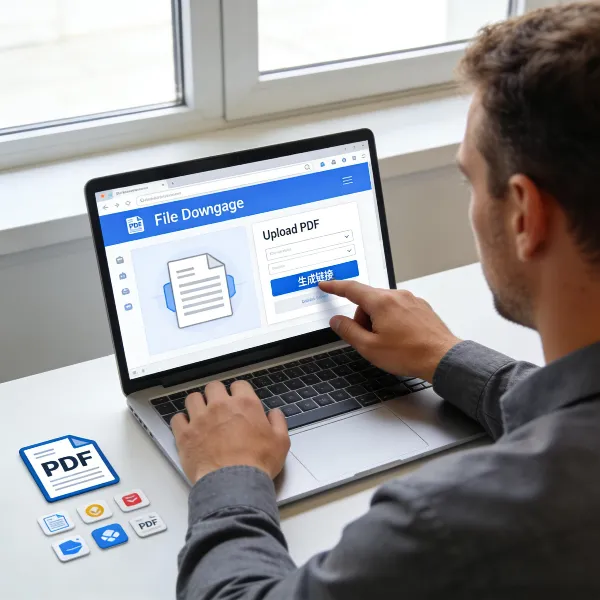
File hosting services are another quick option for sharing PDFs online. Here's how to use them:
Choose a File Hosting Service (e.g., Tiiny.host or iScanner)
Services like Tiiny.host and iScanner let you upload and share files without any hassle. Simply pick one that works best for your needs.
Upload and Copy the Shareable Link
- After logging into your chosen file hosting service, upload your PDF.
- Once uploaded, you’ll be provided with a shareable link that you can copy and distribute however you like.
These services are great for quickly sharing PDFs without worrying about permissions or complicated setups.

How to Add a Link Inside a PDF Using Adobe Acrobat
You may want to add a clickable link inside a PDF, like linking to a webpage, another document, or even another page in the same PDF. Here’s how to add hyperlink to PDF in Adobe Acrobat:
Open the PDF in Adobe Acrobat
First, open the PDF using Adobe Acrobat. You can use either the desktop or online version of the software.
Select "Add or Edit Link" Tool
Go to the “Tools” menu, select “Edit PDF,” then choose the “Link” tool. This lets you add or edit links inside the PDF document.
Draw a Box and Set the Destination
Once you’ve selected the link tool, draw a box where you want the link to appear. A pop-up window will ask for the destination of the link, whether it’s a webpage, another PDF, or a specific page within the same document.
Customize Link Appearance
You can adjust the appearance of the link by changing the border, color, and style. This makes it easier for readers to recognize the link and click on it.

More Tips for Linking to PDFs Properly
Here are some tips to help ensure your PDF links are useful and user-friendly:
- Keep Links Short: Use URL-shortening tools like Bitly to make long links more manageable and shareable.
- Check Permissions: Always double-check the sharing permissions before sending out a link. Ensure that it’s accessible to everyone you intend to share it with.
- Test Your Link: Before sharing a link, click on it yourself to ensure it works properly. This way, you can avoid sharing broken links.
- Provide a Clear Call to Action: When sharing your link, be clear about what it’s for—whether it's “Click here to download the file” or “View the full document here.”
Conclusion
Knowing how to create a link to a PDF makes sharing documents more efficient. Whether you’re using cloud storage like Google Drive or Dropbox, a file hosting service, or adding links within the PDF itself using Adobe Acrobat, the process is simple and straightforward.
In addition to the steps above, click here to learn how to edit a PDF on Mac to further streamline your workflow!