Editing a PDF on your Mac doesn’t have to be complicated. Whether you’re adding text, making annotations, or rearranging pages, you’ve got options. This guide will show you how to edit a PDF on Mac, from the free built-in Preview app to more advanced third-party tools. Whether you’re working on a school assignment, a work document, or just a personal file, you’ll find exactly what you need to get the job done.

Why You Need to Edit PDFs on Your Mac
There are plenty of reasons why you might need to edit PDFs on Mac. PDFs are widely used for documents across work, school, and personal life. But sometimes you need to make edits—whether that’s correcting a typo, adding comments, or signing a document.
Instead of printing out a PDF to make changes or relying on expensive software, editing a PDF on Mac lets you stay productive and efficient. With a few simple tools, you can modify your PDFs in no time, saving you time and effort on your Mac.
The Easiest Way to Edit PDFs on a Mac: Using Preview
For most users, the built-in Preview app is the go-to tool for editing PDFs on a Mac. It’s simple, free, and accessible—no need for extra software. Whether you just want to add some text or highlight a few areas, Preview has you covered.
How to Edit a PDF Using Preview on Mac
- Open the PDF: To start, just double-click the PDF file. If Preview isn’t your default app, right-click the file, select Open With, and choose Preview.
- Enable the Markup Toolbar: Once the document is open, click on the Markup button (pencil icon) in the toolbar. This activates the tools you’ll need to edit the file.
- Add Text: To insert text, click on the Text Tool (T) in the markup toolbar. A text box will pop up, and you can type your edits wherever you need.
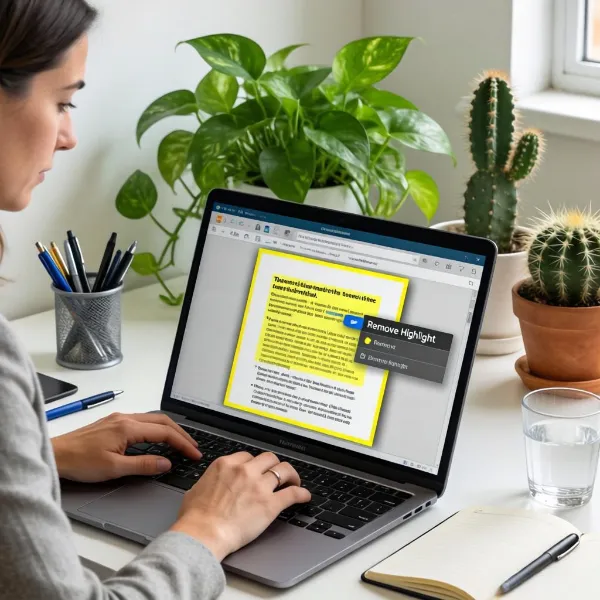
- Highlight and Annotate: Use the Highlight tool to emphasize important text, or add shapes (circles, squares, arrows) to draw attention to specific areas.
- Draw and Scribble: The Draw tool lets you freehand annotations. Perfect for marking up a document with sketches or quick notes.
- Save Your Work: Once you’re done, go to File and hit Save to store your changes.
While Preview is great for basic edits, it’s not perfect for everything. If you need to rearrange pages, edit text in-depth, or convert your PDF to another format, it’s time to explore more advanced options.
When to Use Third-Party Software for More Advanced Editing
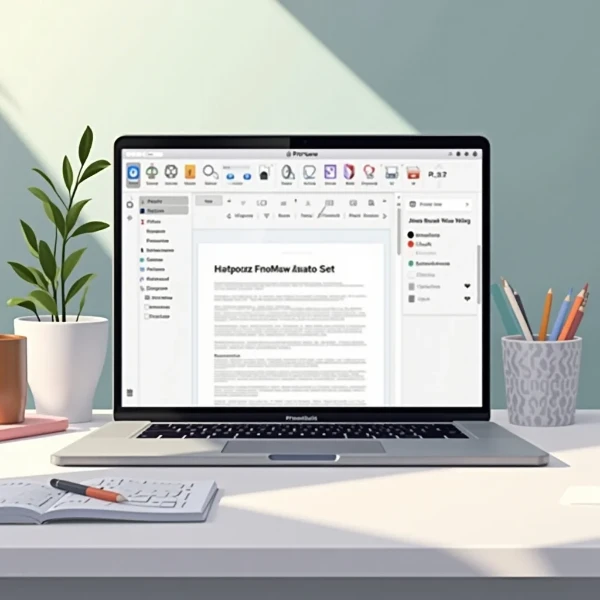
While Preview is perfect for basic edits, sometimes you need more powerful tools. Whether it’s rearranging pages, editing complex text, or converting your PDF to another format, third-party software can step in where Preview falls short.
If you need advanced editing features or more control over your documents, here are a few tools that can help.
Recommended PDF Editors for Mac
Adobe Acrobat: Powerful and Feature-Rich
Adobe Acrobat is one of the most well-known names when it comes to PDF editing. If you need a feature-packed tool that lets you do it all—editing text, rearranging pages, adding comments, and more—Adobe Acrobat is a great choice. It also allows you to password protect a PDF, convert PDFs to Word or Excel files
Key Features:
- Edit text and images in PDFs
- Rearrange, delete, or rotate pages
- Convert PDFs to other formats (like Word, Excel, etc.)
- Secure your PDFs with password protection
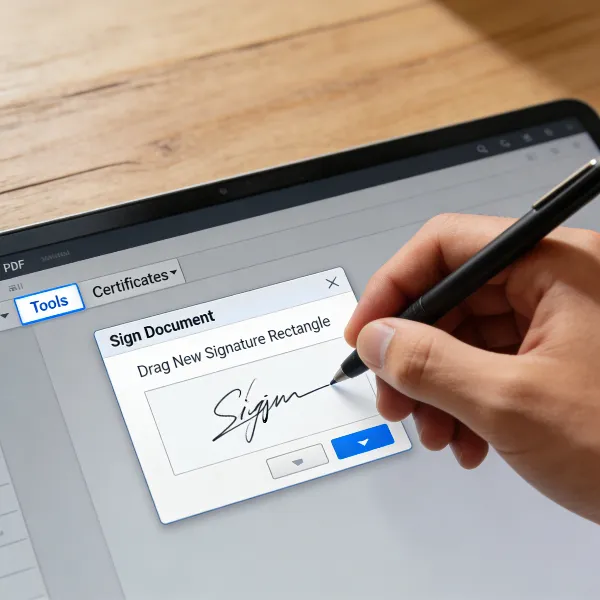
- Add digital signatures and comments
Price: Subscription-based (starting at $14.99/month). While it’s a bit of an investment, the tool offers a comprehensive set of features for serious PDF work.
PDF Expert: Easy to Use and Feature-Rich
PDF Expert is a solid choice for users who want an intuitive PDF editor that’s both powerful and easy to use. It’s perfect for users who need to edit text, sign documents, and manage pages without the steep learning curve. Plus, it has great integration with cloud services like iCloud and Dropbox.
Key Features:
- Edit text and images in PDFs
- Fill out forms and sign documents
- Rearrange, delete, and merge pages
- Annotate and highlight text
- Sync with cloud services like iCloud and Dropbox
Price: $79.99 for a one-time purchase, or $7.99/month for the Pro version. It’s a great deal for anyone who needs a reliable PDF editor without a recurring cost.
Nitro PDF Pro: A Powerful Alternative
Nitro PDF Pro is another excellent option for those looking for a budget-friendly alternative to Adobe Acrobat. Nitro offers many of the same features, like text editing, page rearrangement, and PDF conversion. It also includes Optical Character Recognition (OCR), which lets you convert scanned PDFs into editable text.
Key Features:
- Edit, convert, and merge PDFs
- Optical Character Recognition (OCR)
- Password protect PDFs and manage permissions
- Batch process multiple files at once
Price: $179.99 for a one-time purchase. Nitro PDF Pro is a great choice for anyone who needs powerful features without paying for a subscription.
Editing PDFs Online: A Convenient Option for Mac Users
If you prefer not to install any software, online PDF editors are a great way to make quick edits. These tools let you work directly in your browser, so there’s no need to download anything. Many of these editors are free or come with a limited free version. Additionally, if you want to quickly open a PDF in Google Docs, online tools like Google Drive allow you to upload and convert PDFs into a Google Docs format for further editing.
Benefits of Online PDF Editors:
- No need to install software
- Accessible from any device with an internet connection
- Simple and easy-to-use for basic edits
- Many are free or affordable
Popular online tools include Adobe’s free PDF editor, Smallpdf, PDFescape, and ILovePDF. These services can help you make simple edits, such as highlighting text, adding comments, and even converting PDFs.
Adobe’s Online Tools
Adobe also offers a set of free online tools that can handle basic PDF edits. With these tools, you can add text, highlight sections, and sign your PDFs. While they’re not as powerful as the desktop version, Adobe’s online tools are a convenient way to make quick changes when you’re on the go.
Other Web-Based Editors
Other web-based options like Smallpdf and PDFescape offer a variety of simple editing tools. These are perfect if you need to make quick fixes or edits, such as adding annotations or signatures, without downloading anything.
Conclusion: Edit PDFs on Your Mac with Ease
This article describes how to edit a PDF on Mac. Whether you’re using the free Preview app for basic edits or investing in a more advanced tool like Adobe Acrobat or PDF Expert, there’s a solution for every need.
Preview is perfect for quick edits like adding text or highlighting, while tools like Adobe Acrobat and PDF Expert are great for more advanced work, such as rearranging pages or editing text. And if you don’t want to install software, online tools offer a convenient option to edit PDFs right in your browser.
No matter what your needs are, there’s a solution for you. Try Preview for simple tasks or explore third-party editors if you need more advanced features. Now, you’re ready to start editing PDFs on your Mac with ease