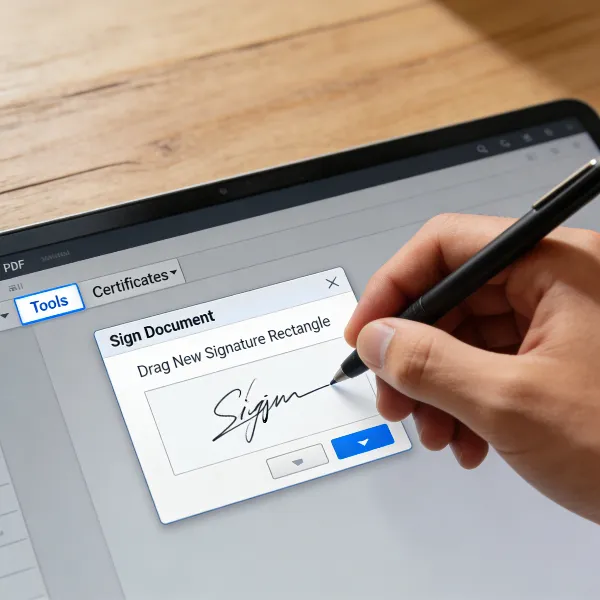
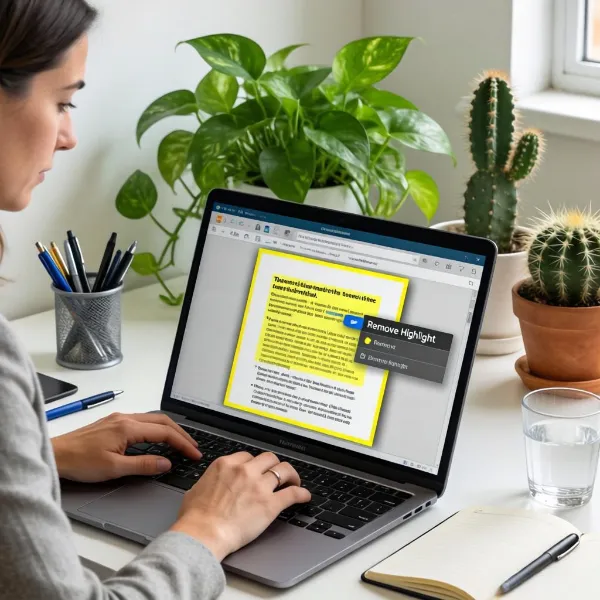
If you’ve ever found yourself needing to change something in a PDF, you know how frustrating it can be. Unlike Word documents, PDFs are designed to preserve formatting, making them less flexible when it comes to editing. But don’t worry! Editing text in a PDF is possible, and with the right tools, it’s actually pretty straightforward. In this guide, we’ll walk you through how to edit text in PDF, from simple corrections to major updates.
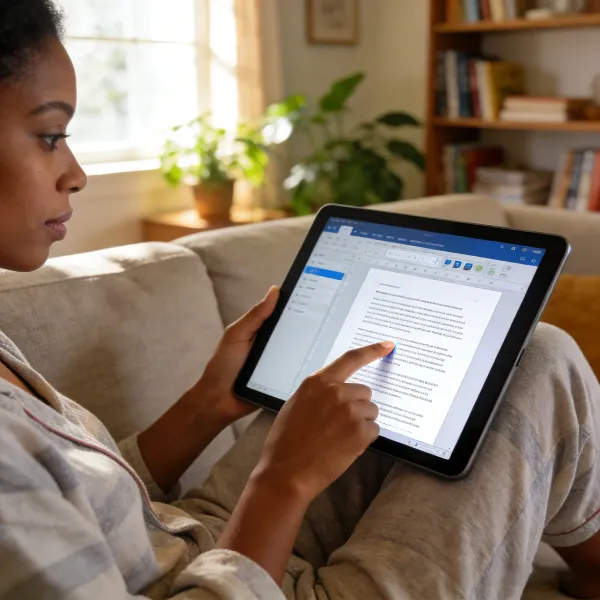
How to Edit Text in a PDF
Editing text in a PDF can be done in a few simple steps with the right software. Whether you're correcting a typo or making more extensive changes, here’s how you can do it:
1. Open Your PDF in a PDF Editor
The first step is to open your PDF in a tool that allows text editing. Options like Adobe Acrobat, Sejda, and iLovePDF are great choices for this. Once opened, you’ll be able to access editing features that let you change the text directly.
2. Select the Text Editing Tool
Once the PDF is open, look for the text editing tool. In Adobe Acrobat, this is found under the "Edit PDF" option. When selected, it will allow you to highlight the text you want to modify.
3. Edit the Text
Now, click on the text you need to edit. You can easily delete, replace, or add new words. If the document has any restrictions, you might not be able to edit it, but that’s something to check before proceeding.
4. Adjust the Font and Size (Optional)
If needed, you can change the font, size, or style of the text to match the rest of the document. This option is available in most PDF editors and helps keep your document looking consistent.
5. Save Your Changes
Once you're satisfied with the changes, make sure to save the document. You can either overwrite the original file or save it as a new version to avoid losing the original content.
6. Export the Edited PDF
Some tools offer the option to export your edited PDF. Double-check your edits before saving or exporting to ensure everything is just right.
6 Best Tools You Can Use to Edit Text in PDFs
There are plenty of tools available for editing text in PDFs, ranging from powerful desktop programs to simple online editors. Here’s a look at six of the best options that make it easy to update PDF content without a hassle.
1. Adobe Acrobat (Pro/Online)
Adobe Acrobat is arguably the most popular and reliable tool for editing PDFs. Whether you’re using the Pro version or the online version, Acrobat gives you full control over your PDFs. You can edit text, images, and even adjust the layout of your documents. It’s ideal for professional use and comes with features like document security and collaboration tools. Acrobat’s robust set of editing tools makes it the go-to choice for many users.
2. Canva Free Online PDF Editor
Canva is best known for its design tools, but its free online PDF editor is also a handy tool for making quick text changes. You can modify text, replace images, and add new elements to your PDF. Canva’s intuitive interface makes it easy to use, even for beginners. Whether you need to tweak a simple document or want to add some design flair, Canva’s free PDF editor is a great option, especially for non-technical users.
3. Sejda Online PDF Editor
Sejda is a simple, user-friendly online PDF editor that allows you to edit text and perform other tasks like adding images and filling forms. It’s perfect for people who need to quickly make changes to PDFs without installing software. Sejda even offers batch editing, so you can edit multiple PDFs at once. With both a free and paid version, it’s a solid choice for those looking for an easy-to-use tool with no fuss.
4. iLovePDF PDF Editor
iLovePDF is another excellent online tool for editing PDFs. It’s fast, straightforward, and allows you to easily edit text, add annotations, or even convert PDFs to other formats. One of its standout features is its ability to integrate with cloud services like Google Drive and Dropbox, making it easy to work directly from the cloud. Whether you're working on a simple edit or need more advanced features, iLovePDF is a versatile and reliable choice.
5. Smallpdf PDF Editor
Smallpdf offers a range of PDF tools, and its PDF editor is one of the easiest to use. You can modify text, add images, and more, with a minimal learning curve. Smallpdf also integrates with cloud storage services, allowing you to edit documents directly from your Google Drive or Dropbox account. If you need a quick and efficient tool to make simple edits, Smallpdf is perfect.
6. PDFAid PDF Editor
PDFAid offers a solid PDF editor that allows for text and image modifications. It’s available both as an online tool and as downloadable software. PDFAid stands out because it supports converting PDFs to other formats, like Word or Excel, which can be useful if you need to make significant changes to your document. It’s a reliable option for both light and more complex PDF editing tasks.
Important Considerations When Editing Text in PDFs
Before diving into editing your PDF, there are a few things to keep in mind to ensure a smooth editing process. Here are some key considerations:
- PDF Permissions: Some PDFs may have security settings that prevent editing. Make sure the document is unlocked and that you have permission to make changes.
- Font Compatibility: The font used in the original PDF may not be available in your editing tool. This can lead to mismatched text. Be prepared to adjust the font if necessary.
- Text Flow: Editing text can sometimes mess with the layout of the document. Always double-check that the text flows properly after editing.
- Editor Compatibility: Not all PDF editors work equally well with every PDF. Some older PDFs or those with complex formatting may not display or edit properly.
- Professional Formatting: If your PDF is used for official or professional purposes, ensure your edits maintain the document’s formatting and integrity.
- File Size: After making edits, the PDF file size might increase, especially if you add images or other media. Keep this in mind if you need to email or upload the file.
- Backup the Original: It’s always a good idea to keep a backup of the original document before making changes, just in case you need to revert to it.
Benefits of Editing Text in a PDF
Editing text in a PDF offers a number of practical benefits. Here are some of the key advantages:
- Quick Fixes: Instead of recreating a document, you can simply update the text, saving both time and effort.
- Preserved Formatting: PDFs retain their original formatting, so you don’t need to worry about the document looking different after editing.
- Cost Savings: Editing a PDF is more cost-effective than converting it to another format, making it a practical choice for business or personal use.
- Better Accuracy: By editing the text directly in the PDF, you reduce the risk of errors that can occur when converting to another format.
- Consistency: Since PDFs are widely used for official documents, editing them directly helps maintain consistency across your files.
- Flexibility: Whether you need to update a contract, correct a report, or just change a few words, PDF editing tools make it easy to modify the content.
- Security: When you edit a PDF, you can also secure it with password protection, making it safer to share and distribute.
Conclusion
Now that you know how to edit text in PDF, you can easily update your documents whenever necessary. Whether you're fixing small mistakes or making larger revisions, the right tools and techniques can make the job much easier. From Adobe Acrobat to online options like Sejda and iLovePDF, there are plenty of tools to choose from. Editing PDFs doesn’t have to be complicated, so take advantage of these simple tips and keep your documents up-to-date with ease.