When you're working with PDFs, there are times when you don’t need the entire document. Maybe you only need a few pages for reference, or you want to share a smaller portion of the file with others. Knowing how to extract pages from PDF can save you time and effort. In this guide, we’ll show you different ways to extract pages from a PDF, including using Adobe Acrobat, online tools, your web browser, and Mac Preview. Let’s dive into the different methods and find the one that’s right for you.
Why Extracting Pages from a PDF Can Be Useful
Extracting pages from a PDF is a simple but incredibly useful tool. Here are a few reasons why you might want to do it:
- Save Storage Space: If you only need a small section of a PDF, extracting the pages you need reduces the file size.
- Quick Access: Instead of scrolling through a long document, extracting pages lets you focus only on the content you need.
- Share Efficiently: If you want to send only specific pages to someone, extracting them keeps things simple and organized.
How to Extract Pages from a PDF with Adobe Acrobat
Adobe Acrobat is one of the most powerful tools when it comes to working with PDFs. Here’s how you can extract pages using Adobe Acrobat:
- Open the PDF: Start by opening your PDF file in Adobe Acrobat.
- Choose ‘Organize Pages’: In the right-hand panel, click on the “Organize Pages” tool.
- Select Pages to Extract: Click on the “Extract” button at the top of the screen. You can either select pages manually or enter a specific range (e.g., 2-5 or 8).
- Extract the Pages: After choosing the pages, click on the “Extract” button. You can either create a new file with the selected pages or remove them from the original document.
- Save the New PDF: Save the newly extracted pages by clicking “File” > “Save As” and naming the file.
With Adobe Acrobat, you can easily extract and save specific pages without any hassle.
Using Online Tools for PDF Extraction
If you prefer a free, quick method to extract pages from a PDF, online tools are a great choice. These tools allow you to extract pages without installing any software, and they’re typically easy to use. Below, we’ll explore some of the top online tools and provide a step-by-step guide for using one of them.
Popular Online Tools for PDF Extraction
- Smallpdf: Known for its simple and intuitive interface, Smallpdf is a reliable option for extracting pages quickly.
- PDF2Go: This tool offers a variety of PDF editing options, including page extraction.
- ILovePDF: A straightforward tool that lets you extract pages and perform other PDF tasks with ease.
- Sejda PDF: A more advanced online PDF editor that supports page extraction, merging, and other features.
Step-by-Step Guide: Using Smallpdf
Smallpdf is one of the most popular tools for PDF extraction. Here’s how you can use it:
- Go to Smallpdf: Visit the Smallpdf website.
- Upload Your PDF: Click on “Choose File” to upload your PDF from your computer or cloud storage.
- Select Pages to Extract: After the PDF is uploaded, select the “Extract PDF pages” option. You can pick specific pages or a range.
- Download the Extracted PDF: Once the extraction is complete, you’ll be able to download the new PDF with only the pages you’ve selected.
Extracting Pages from a PDF Using Your Web Browser
If you want a quick and free method, you can even use your web browser to extract pages from a PDF. Here’s how:
- Open the PDF in Your Browser: Open the PDF file in your browser by dragging the file into the browser window or using the “Open With” option.
- Print the PDF: Press “Ctrl + P” (or Command + P on a Mac) to open the print dialog.
- Choose “Save as PDF”: In the printer options, select “Save as PDF” instead of choosing an actual printer.
- Select Pages: In the print dialog, specify the page range you want to extract.
- Save the PDF: Click “Save,” and choose where to store the newly extracted PDF with only the pages you selected.
This method works well when you need to extract pages on the fly and don’t want to bother with additional software.
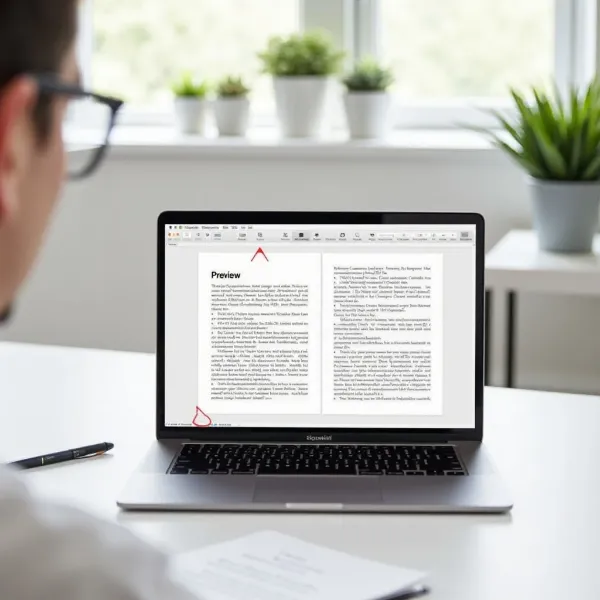
How to Extract Pages from a PDF on Mac with Preview
If you're using a Mac, Preview is a simple and efficient way to extract pages from a PDF. Here’s how you can do it:
- Open the PDF in Preview: Right-click the PDF file and select “Open with” > “Preview.”
- Show Thumbnails: Go to the “View” menu and select “Thumbnails” to display all pages in a sidebar.
- Select Pages to Extract: Hold down the Command key and click the pages you want to extract.
- Drag the Pages: Once the pages are selected, simply drag them out of the Preview window and onto your desktop. This will create a new PDF containing only the extracted pages.
- Save the New PDF: If needed, go to “File” > “Save” to save the newly created PDF.
This method is great for Mac users looking for a fast, built-in option to extract pages from a PDF without needing third-party software.
Common Issues When Extracting Pages from a PDF
Although extracting pages from a PDF is a straightforward task, there are a few issues you might encounter:
- File Corruption: The extracted pages could become corrupted, making them unreadable. Always check your original file before extracting pages.
- Loss of Formatting: Complex PDFs with images, tables, or custom fonts may lose formatting when you extract pages. Make sure to double-check the extracted file.
- Size Limitations: Many free online tools have size limits. If your PDF is too large, you might need to use a desktop tool like Adobe Acrobat or Preview.
How to Choose the Best Method for Your Needs
When it comes to extracting pages from a PDF, there are several factors to consider. Let’s explore the key points that can help you choose the best method for your situation.
1. Ease of Use
Consider how easy the method is to use. Tools like Smallpdf are simple and intuitive, while software like Adobe Acrobat offers more advanced features. If you’re looking for a quick and easy solution, an online tool is your best bet.
2. Features
Think about the features you need. Some tools, like Adobe Acrobat, offer advanced editing options, while others (like Preview on Mac) are great for simple tasks. If you need more than just page extraction, choose a tool with additional PDF features.
3. Cost
While online tools are free, they may have limitations. For frequent users, investing in a paid option like Adobe Acrobat might be worth it for its extended features and higher file size limits.
4. Security
For sensitive or private documents, security is key. Desktop software like Adobe Acrobat or Preview is more secure than online tools, as your documents aren't uploaded to third-party servers.
5. Compatibility
Make sure the tool is compatible with your operating system. For example, Mac users may prefer Preview, while Windows users might choose Adobe Acrobat or an online solution.
Final Thoughts on Extracting Pages from a PDF
Knowing how to extract pages from PDF is a handy skill that can save you time and make working with documents a lot easier. Whether you’re using Adobe Acrobat for advanced features, an online tool for a quick job, or Preview on your Mac for a built-in option, there’s a method for everyone. Just keep your needs and preferences in mind, and you’ll be able to choose the best way to extract the pages you need with ease.