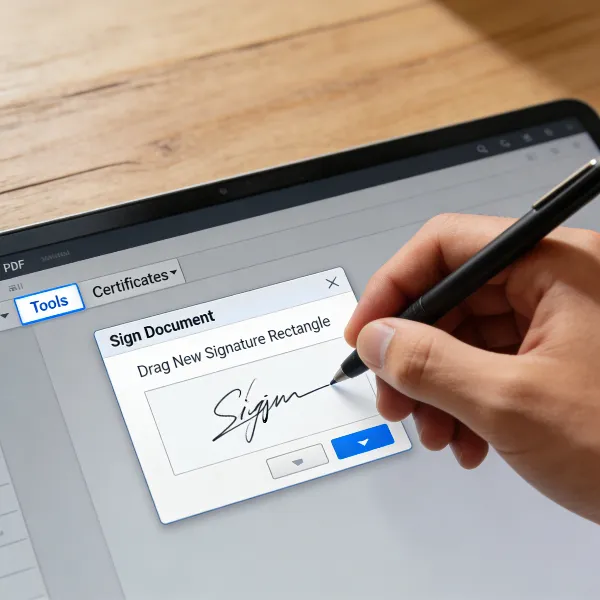
Want to include a PDF in your PowerPoint presentation? Whether you're showing a report, sharing important reference material, or just want to add a PDF to your slides, there are a few easy methods to do so. In this guide, we’ll walk you through how to insert a PDF into PowerPoint in four simple and effective ways. From embedding PDFs to converting them into slides, we’ll cover it all, so you can choose the method that best fits your presentation needs. Let’s dive in!

Can I Insert a PDF into a PowerPoint?
Yes, you absolutely can! Sometimes, including a PDF in your PowerPoint presentation makes it easier to share documents, reports, or other materials without overwhelming your slides with too much text. Whether you need to display a portion of a PDF or present the entire document, PowerPoint makes it easy to incorporate PDFs. Let’s explore the different methods for inserting PDFs into your slides so you can select the best option for your needs.

How to Insert a PDF into PowerPoint: Methods Explained
There are multiple ways to insert a PDF into your PowerPoint presentation, each offering unique benefits depending on what you want to achieve. Let’s take a look at four of the most straightforward methods.
Method 1: Embed a PDF as an Object (Editable and Openable)
This method allows you to embed a PDF directly into your PowerPoint slide. The PDF can then be opened during your presentation, or even edited if necessary. This is ideal for interactive presentations.
Steps:
- Open PowerPoint and go to the slide where you want to add the PDF.
- Click on the Insert tab in the top menu.
- In the Text group, select Object.
- In the dialog box, choose Create from File.
- Browse to your PDF, select it, and click OK.
- The PDF will appear as an icon (or thumbnail) that you can click to open during your presentation.
This method is great if you want to keep the original PDF intact and viewable in your presentation. You can open it during your talk without leaving PowerPoint.
Method 2: Insert a PDF as a Picture (Snapshot)
If you want to display a static version of a PDF (such as a page or a section), turning the PDF into an image is an excellent option. It’s quick and easy and keeps the slide clean and readable.
Steps:
- Open the PDF on your computer using any PDF viewer.
- Take a screenshot of the part of the PDF you want to show.
- In PowerPoint, go to the slide where you want the image.
- Click Insert > Picture > From File.
- Select the screenshot and adjust the size or position as needed.
This method is perfect for showing a portion of a PDF, such as a chart, table, or important section, without having to deal with the full document.
Method 3: Insert a PDF as an Icon
Inserting a PDF as an icon is a great way to keep your slides neat and still allow your audience to access the full PDF file when needed. Clicking the icon will open the PDF in a separate viewer.
Steps:
- Go to the slide where you want to add the PDF.
- Click Insert > Object.
- Choose Create from File and select the PDF file you want to insert.
- Check the Display as Icon box.
- Click OK, and the PDF will be inserted as an icon.
With this option, the PDF will appear as a clickable icon on the slide, allowing your audience to open it whenever they need it.
Method 4: Convert PDF to PowerPoint Slides
If you'd prefer to break the PDF down into editable slides, converting the PDF into a PowerPoint presentation is an excellent choice. This method allows you to modify the content, add transitions, or adjust the layout as needed.
Steps:
- Use a PDF-to-PowerPoint converter (e.g., Adobe Acrobat or an online tool).
- Upload the PDF and convert it into a PowerPoint file (.pptx).
- Open the new PowerPoint file and review the slides.
- Edit the slides as needed to fit your presentation style.
This method is great if you want the content of the PDF to become part of your PowerPoint slides, making it more customizable.
Key Tips for Inserting PDFs into PowerPoint
To make the process of adding PDFs to PowerPoint smoother, here are a few helpful tips:
- Optimize PDF Size: Large PDF files can slow down your presentation. Compress the PDF or reduce the image sizes in the document to make it more manageable.
- Compatibility Check: Make sure that your version of PowerPoint supports embedding PDFs. Some older versions may have issues displaying PDFs properly.
- High-Quality Images: When inserting a PDF as an image, ensure the quality is high enough to remain clear when resized or zoomed in.
- Use Standard Fonts: If you convert a PDF to PowerPoint slides, make sure to use standard fonts to avoid issues with font compatibility.
- Keep It Simple: Don’t overload your slides with too many PDFs. Instead, focus on the key sections or data that will add value to your audience.
These tips will help you avoid common pitfalls and ensure that your PDFs look great in your presentation.

Conclusion
Now that you know how to insert a PDF into PowerPoint, you can easily choose the best method for your needs. Whether you want to embed the PDF as an object, display it as an image, or convert it into editable slides, there’s an option for every type of presentation. With the steps outlined above, you’ll be able to seamlessly incorporate PDFs into your slides and enhance your presentations with additional content, all while keeping things simple and professional.
By following the methods and tips shared here, you’ll be able to make your presentations more engaging and informative with minimal effort.
Need more presentation tips? Check out our guide on improving your PowerPoint slides! And if you're interested in learning how to handle PDFs more effectively, visit our in-depth tutorial on inserting a PDF into Word.