Creating PDFs on your iPhone has never been easier. Whether you need to convert documents, images, or even entire webpages into PDFs, your iPhone comes equipped with everything you need. This guide walks you through the process, showing you how to make a PDF on iPhone quickly and efficiently.
With just a few simple steps, you can convert almost anything on your phone into a PDF file. Let's dive in now!
Why You Might Need to Create a PDF on iPhone
There are several reasons you might want to create PDFs on your iPhone. Whether you're sharing work documents, saving receipts, or archiving important files, PDFs are incredibly useful.
First, PDFs preserve the original formatting of your document. Unlike other file types, PDFs look the same on any device, which is especially useful when sharing professional files. Contracts, invoices, and reports all stay formatted correctly, making PDFs the go-to option for work-related documents.
PDFs also offer a higher level of security. You can encrypt them with passwords or restrict access, ensuring your documents remain private. Whether you're dealing with personal data or confidential business files, PDFs are a safe option.
Finally, PDFs are easy to share and open on almost any device. Whether it's through email, text, or cloud storage, you can be sure that the person you're sending it to will be able to view it without issue.
How to Convert a Photo to PDF on iPhone
First, we cover the steps to convert a photo to PDF on iPhone.
Step-by-Step Guide to Converting a Single Image
Converting a photo into a PDF on your iPhone is simple and takes just a few steps. Here's how:
- Open the Photos App: Find and select the photo you want to convert.
- Tap the Share Button: It's the square icon with an arrow pointing up in the lower-left corner.
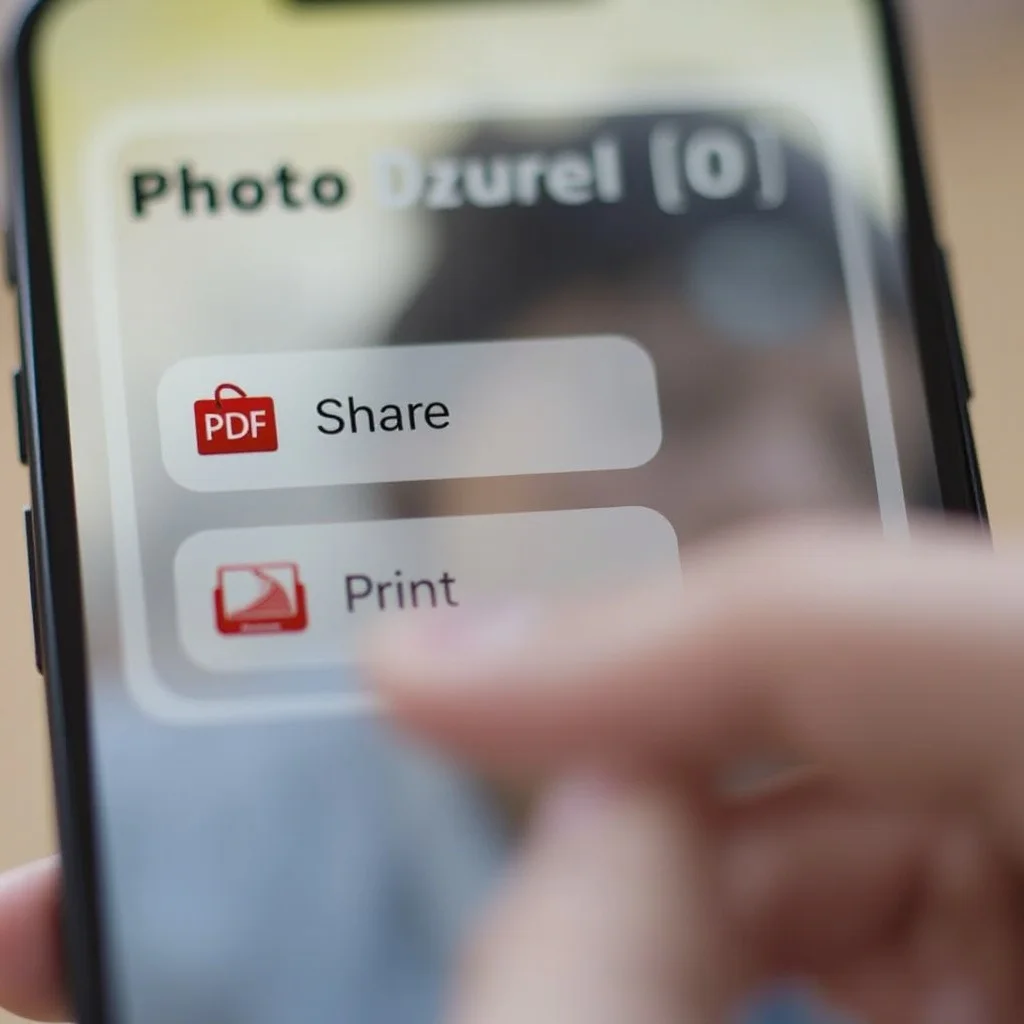
- Choose Print: Scroll through the share options and tap "Print."
- Pinch to Zoom: On the print preview screen, perform a pinch-to-zoom gesture. This will turn your photo into a PDF.
- Save the PDF: Tap the "Share" button again, then choose "Save to Files" or share it via email or other methods.
This is a quick way to convert any photo into a PDF without needing extra apps.
How to Convert Multiple Photos into One PDF
You can also convert multiple photos into one single PDF. Here's how:
- Open the Photos App: Select the images you want to convert.
- Tap the Share Button: After selecting your photos, tap the share icon.
- Choose Print: From the share options, tap "Print."
- Pinch to Zoom: Pinch to zoom on the preview, and your images will be combined into one PDF.
- Save the PDF: Save the newly created PDF to your Files app, or share it directly.
This method is ideal when you need to bundle several images into one PDF.
How to Create PDFs from Webpages on iPhone
Sometimes, you might want to save a webpage as a PDF for offline reading or sharing. Fortunately, Safari on your iPhone makes this easy.
Using Safari to Save a Webpage as a PDF
To save a webpage as a PDF using Safari, follow these steps:
- Open Safari: Navigate to the webpage you want to save.
- Tap the Share Button: You'll find the share icon at the bottom of the screen.
- Select "Options": Scroll down to tap "Options."
- Choose PDF: Select "PDF" as your preferred format.
- Save the PDF: You can save the PDF to your Files app for future use.
This method is great for saving articles, receipts, and other important online content.
The Print Option for Saving Webpages to PDF
Another method involves using the print option in Safari:
- Open Safari: Go to the webpage you want to save.
- Tap the Share Button: Tap the share icon at the bottom of the screen.
- Select Print: From the share menu, tap "Print."
- Pinch to Zoom: Pinch to zoom on the preview to create a PDF.
- Save the PDF: Save the PDF to your Files app or share it directly.
This method provides a quick way to convert webpages into PDFs with more control over formatting.
How to Convert Documents to PDF on iPhone
Your iPhone makes it easy to convert documents into PDFs without the need for third-party apps. Here's how:
Turning Existing Documents into PDFs via the Files App
You can convert any document stored in the Files app into a PDF:
- Open the Files App: Navigate to the document you want to convert.
- Select the Document: Tap to open it.
- Tap the Share Button: In the lower-left corner, tap the share icon.
- Choose "Create PDF": If available, tap "Create PDF."
- Save or Share: Save the PDF to your Files app or share it via email.
This is a quick and easy way to convert text files, spreadsheets, and other documents into PDFs.
Using Third-Party Apps for Enhanced PDF Features
For more advanced features, third-party apps like Adobe Acrobat Reader or PDF Expert offer additional tools:
- Download a PDF App: Install a PDF conversion app from the App Store.
- Open the App: Launch the app and select the document you want to convert.
- Follow the Conversion Steps: Each app will have specific instructions to convert documents into PDFs. These apps also offer features like merging multiple documents or adding annotations.
These apps are perfect if you need more control over your PDFs, such as adding notes or signing documents.

Common Issues and Troubleshooting PDF Creation on iPhone
While creating PDFs on your iPhone is usually straightforward, you might encounter a few problems. Here’s how to troubleshoot common issues:
Resolving PDF Creation Errors
If you encounter an error while creating a PDF, try restarting your iPhone or updating to the latest software. Often, these simple steps will resolve the issue.
PDF Isn’t Saving Correctly
If your PDF isn’t saving, make sure you’ve selected the correct format (PDF) and check that you have enough storage space on your phone. If the issue persists, try saving the PDF to a different location within the Files app.
PDF is Too Large to Share
If your PDF is too large to share via email, consider using a PDF compression tool or app to reduce the file size. Several apps are available in the App Store that can compress PDFs for easier sharing.

Conclusion
Creating a PDF on your iPhone is a simple yet powerful feature that can save you time and make sharing documents easier. Whether you need to convert images, documents, or webpages, your iPhone makes it easy to create PDFs wherever you are.
With just a few taps, you can turn important files into PDFs that are easy to store, share, and access. Mastering how to make a PDF on iPhone ensures that you're always prepared to handle your documents on the go.