Do you need to make a PDF fillable? Whether you're preparing forms for work, school, or personal use, knowing how to make a PDF fillable can save time and effort. This guide will walk you through the steps to create fillable PDFs easily. From using professional software like Adobe Acrobat to free online tools, we'll help you choose the best method for your needs. By the end of this article, you'll be ready to turn your static PDF into an interactive document that others can fill out with ease.

What Is a Fillable PDF?
A fillable PDF is a type of PDF file that allows users to interact with the document by filling out text fields, selecting checkboxes, or choosing options from drop-down menus. This makes the document interactive, which is particularly useful for forms, surveys, and applications. These fields are embedded in the PDF, and the user can save and submit the document after filling it out.
Benefits of Creating a Fillable PDF
Creating a fillable PDF comes with several advantages, making it a preferred format for many users. Here’s why you should consider creating one:
- Easy to Complete: Users can quickly fill in the required information without printing or scanning.
- Accuracy: Reduces errors from handwriting or typing by providing clear input fields.
- Security: Protects sensitive information through password encryption and restricted editing.
- Professional Appearance: Enhances your document's look with organized, easy-to-use fields.
- Convenience: Ideal for submitting forms online or via email without needing to visit a physical office.
Methods for Creating a Fillable PDF
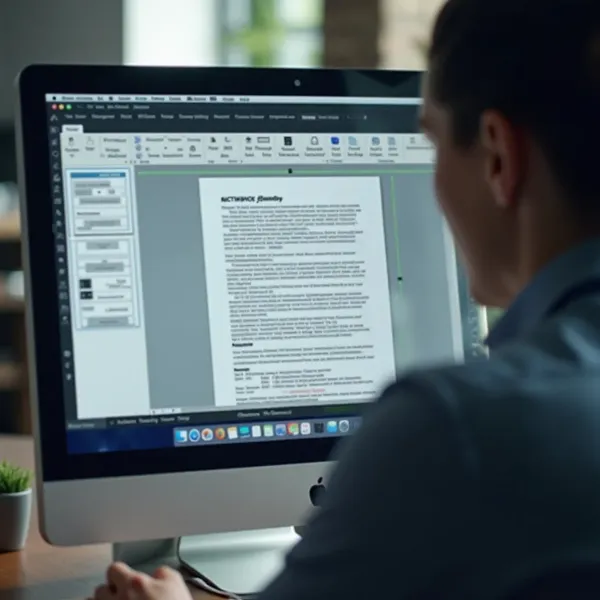
There are several ways to make a PDF fillable. You can either use desktop software like Adobe Acrobat or explore free online tools. Below are the methods, along with step-by-step instructions to guide you through the process.
1. Using Adobe Acrobat (Desktop App)
Adobe Acrobat is one of the most reliable and professional tools for creating fillable PDFs. Follow these steps to create a fillable form using Adobe Acrobat:
- Open Your PDF: Launch Adobe Acrobat and open the PDF document you want to convert.
- Prepare Form Tool: Click on “Tools” in the upper menu and select “Prepare Form.”
- Select Your Document: If the PDF is already created, select it. Acrobat will automatically detect form fields if they exist.
- Add Form Fields: If the PDF doesn't have any form fields, click on the “Add a Text Field” button to insert the required fields. You can also add checkboxes, radio buttons, and dropdown menus.
- Adjust Field Properties: Click on the field you added to adjust its properties, such as size, appearance, and validation.
- Save Your PDF: Once you have finished adding and adjusting all form fields, click “Save” to keep your changes.
2. Using Free Online Tools (Web-Based)
If you don’t have Adobe Acrobat, you can use free online tools to make your PDF fillable. Here’s how to do it:
- Choose a Free Tool: Visit a free online PDF editor like PDFescape, DocHub, or JotForm.
- Upload Your PDF: Select the option to upload your PDF file from your computer.
- Add Fields: Use the tool’s options to add fillable fields to your document. You can add text fields, checkboxes, radio buttons, and dropdown menus.
- Customize Fields: Customize each field's appearance, including size, font, and color, to match your document’s design.
- Save and Download: Once your fillable fields are added, save your changes and download the updated PDF to your device.
Alternatives: Simple Filling Without Form Fields
Not every PDF needs form fields. In some cases, you may just want to allow users to type or mark content directly in the document. Here’s an alternative method to fill in a PDF without creating specific form fields:
- Open PDF in a PDF Reader: Use a basic PDF reader like Preview on Mac or Acrobat Reader to open the PDF.
- Select the Text Tool: Use the text annotation tool to add text or comments directly in the document.
- Save and Share: Once you're done, save the file and share it as needed.
This method isn’t as sophisticated as a fillable PDF with specific fields, but it’s quick and works well for simple tasks.
Tips and Tricks for Making a Fillable PDF
Creating a fillable PDF is straightforward, but there are a few tips to make the process smoother and more effective. Consider the following:
- Plan Your Fields: Before starting, plan the types of fields you need, such as text boxes, checkboxes, or radio buttons.
- Test the Form: Always test your fillable PDF to make sure the fields work as expected.
- Add Instructions: If necessary, include brief instructions within the form to help users fill it out correctly.
- Keep It Simple: Avoid overloading your PDF with too many fields or complicated designs.
- Secure the PDF: If the form contains sensitive information, use password protection or encryption.
- Save a Template: If you need to use the form regularly, save it as a template for easy reuse.
Conclusion: Create and Share Your Fillable PDF Today
Making a PDF fillable is a valuable skill that can help streamline the process of collecting information and providing interactive documents. Whether you choose to use Adobe Acrobat, free online tools, or a simple text tool, you can easily convert any PDF into a fillable form. So, follow the steps outlined in this guide, create your fillable PDFs, and share them confidently, knowing you’ve made the process simpler for everyone involved.