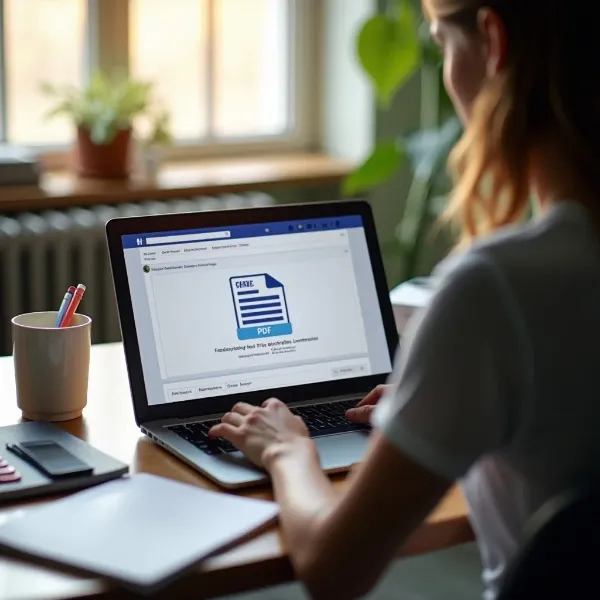
Whether you're managing important work emails or personal ones, knowing how to save an email as a PDF is a useful skill. PDFs are great for storing, printing, and sharing emails while preserving their original format. In this guide, we'll show you how to easily save emails as PDFs on various devices and email platforms, like Gmail, Outlook, and mobile apps on both iPhone and Android. Let’s dive into these simple, step-by-step instructions!
How to Save an Email as a PDF on PC
When using a PC, saving an email as a PDF can be done with just a few clicks. Depending on which email service or software you're using, the process might differ slightly. Let's explore how you can save an email as a PDF on your computer.
Gmail (via web browser)
- Open Gmail and log into your account.
- Find the email you want to save and open it.
- Click the three-dot menu at the top-right corner of the email.
- Select Print from the menu.
- In the print settings window, choose Save as PDF as the printer option.
- Click Save, then choose where to store the PDF on your computer.
Outlook (desktop version)
- Open Outlook and select the email you’d like to save.
- Click on File in the top left corner of the screen.
- Choose Print from the menu.
- From the printer options, select Microsoft Print to PDF.
- Click Print and choose the folder where you want to save the PDF.
Apple Mail (on macOS)
- Open the Mail app on your Mac and select the email you want to save.
- Click File in the top menu and choose Export as PDF.
- Pick the location where you'd like to store the PDF and click Save.
- Your email will be saved as a PDF.
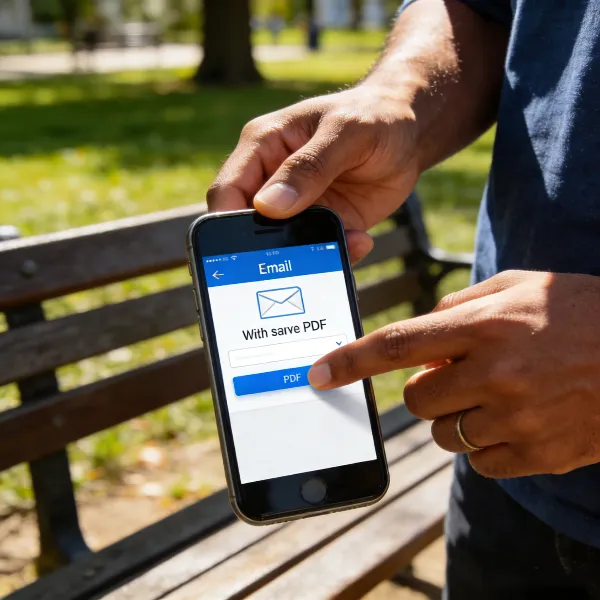
How to Save an Email as a PDF on Your Phone
Saving emails as PDFs on your phone is just as easy as on your PC. Whether you're using an iPhone or an Android, we've got you covered with easy-to-follow steps.
iPhone or iPad (iOS Mail app)
- Open the Mail app on your iPhone or iPad.
- Open the email you want to save.
- Tap the Reply icon (the arrow) and then tap Print.
- On the Printer Options screen, use the Pinch-out gesture to zoom into the email preview and convert it into a PDF.
- Tap the Share icon at the bottom of the screen.
- Choose Save to Files to store it, or share it using another app.
Android Phones (Gmail app or built-in email app)
- Open your email app (like Gmail) and find the email you want to save.
- Open the email and tap the three-dot menu.
- Select Print from the options.
- Choose Save as PDF as your printer option.
- Tap Save and pick a location on your phone to store the file.
Other Available Options
If the methods above don’t fit your needs, there are plenty of other ways to save your emails as PDFs. Here are a few additional options you can try.
Use a PDF Converter Tool
For those who need to convert multiple emails or want extra features, using a PDF converter tool can make things easier. Websites like PDFcrowd or Zamzar allow you to upload emails and convert them to PDFs directly. Some tools even let you convert in bulk, which is helpful if you need to save lots of emails.
Use a Virtual PDF Printer
If you prefer a more versatile option, you can use a virtual PDF printer. Programs like PDFCreator or CutePDF let you "print" emails to PDF from almost any application. This method is especially helpful when your email client doesn't include a built-in PDF option.
Use Email Client Extensions
If you're using a browser like Chrome, there are several useful extensions available that can make saving emails as PDFs a breeze. The Save Emails to PDF extension for Chrome, for example, allows you to quickly convert emails in Gmail to PDFs with just one click.
When to Save Emails as PDFs?
There are a few key situations where it makes sense to save your emails as PDFs. Whether it’s for backup purposes or easier sharing, here’s when you might want to consider saving your emails as PDFs.
Record-Keeping for Work or Legal Matters
Saving emails as PDFs is particularly useful when it comes to important work-related or legal communications. PDFs are secure and reliable, which makes them an excellent way to preserve emails for future reference or use in case of disputes.
Sharing Important Communications
Sometimes, you may want to share an important email without forwarding the entire email thread. Saving it as a PDF allows you to share a clean, easy-to-read version of the message without cluttering your inbox.
Backing Up Important Information
Whether it’s a receipt, confirmation email, or important order, saving key emails as PDFs ensures that you have a backup copy stored safely. PDFs are easy to organize and don’t rely on your email provider’s infrastructure.
Conclusion
Knowing how to save an email as a PDF is a simple yet useful skill for anyone. Whether you're using a PC, Mac, or mobile device, the steps are easy to follow and can help you store, share, and print important emails. With just a few clicks, you can ensure your important emails are safely saved as PDFs. It’s an efficient way to keep records and share important communications.