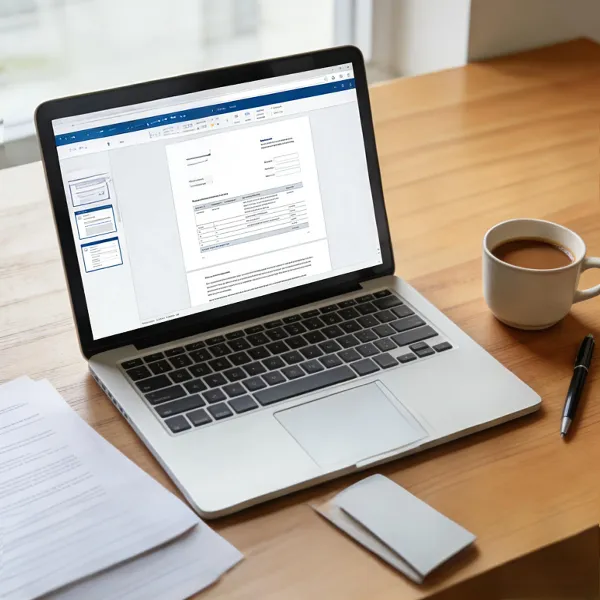
Saving an Excel file as a PDF is a simple, yet essential skill for anyone who works with spreadsheets regularly. Whether you’re sending a financial report, a budget plan, or a simple list, converting your Excel file into a PDF keeps the formatting intact, making it easier to share and print.
This guide will walk you through the easiest methods of how to save Excel as PDF, from simple "Save As" options to more customizable methods. Whether you're just starting with Excel or you're a pro, you'll find the perfect method for your needs.
Methods to Save Excel as a PDF
How to make Excel to PDF? There are several ways to save your Excel file as a PDF, each offering different benefits. Below, we’ll cover three main methods: the Export Method, the Save As Method, and the Print to PDF Method.
The Export Method (Recommended for Quality)
If you want the best quality for your PDF, the Export method is your go-to option. It allows you to customize the PDF settings for the highest resolution, making it perfect for professional reports or detailed documents. Here’s how to use it:
- Open your Excel file.
- Click the “File” tab in the ribbon.
- Choose “Export.”
- Select “Create PDF/XPS Document.”
- Adjust settings such as page orientation and quality.
- Save the file.
This method gives you more control over the output, so you can be sure your PDF looks exactly how you want it when you open a PDF in Google Docs.
The Save As Method (Quick and Easy)
For a quick and easy PDF conversion, the Save As method is the way to go. It’s perfect for when you don’t need to worry about fine-tuning settings. Here’s how to do it:
- Open your Excel file.
- Go to the “File” tab and click “Save As.”
- Choose the folder where you want to save the PDF.
- In the “Save as Type” dropdown, select PDF.
- Click “Save.”
This method is perfect for quick conversions when you don’t need any fancy settings or adjustments.
Using the Print to PDF Method (For Flexibility)
The Print to PDF method gives you the most flexibility, especially when you need to adjust the layout before saving. This method is great if you’re working with a large Excel file or want to ensure your document fits perfectly on a page. Here’s how to use it:
- Open your Excel file.
- Click the “File” tab and select “Print.”
- From the Printer dropdown, select “Microsoft Print to PDF.”
- Adjust print settings such as page size, margins, and orientation.
- Click “Print,” then choose a location to save the PDF.
This method is useful if you need to adjust print settings before saving your file as a PDF.
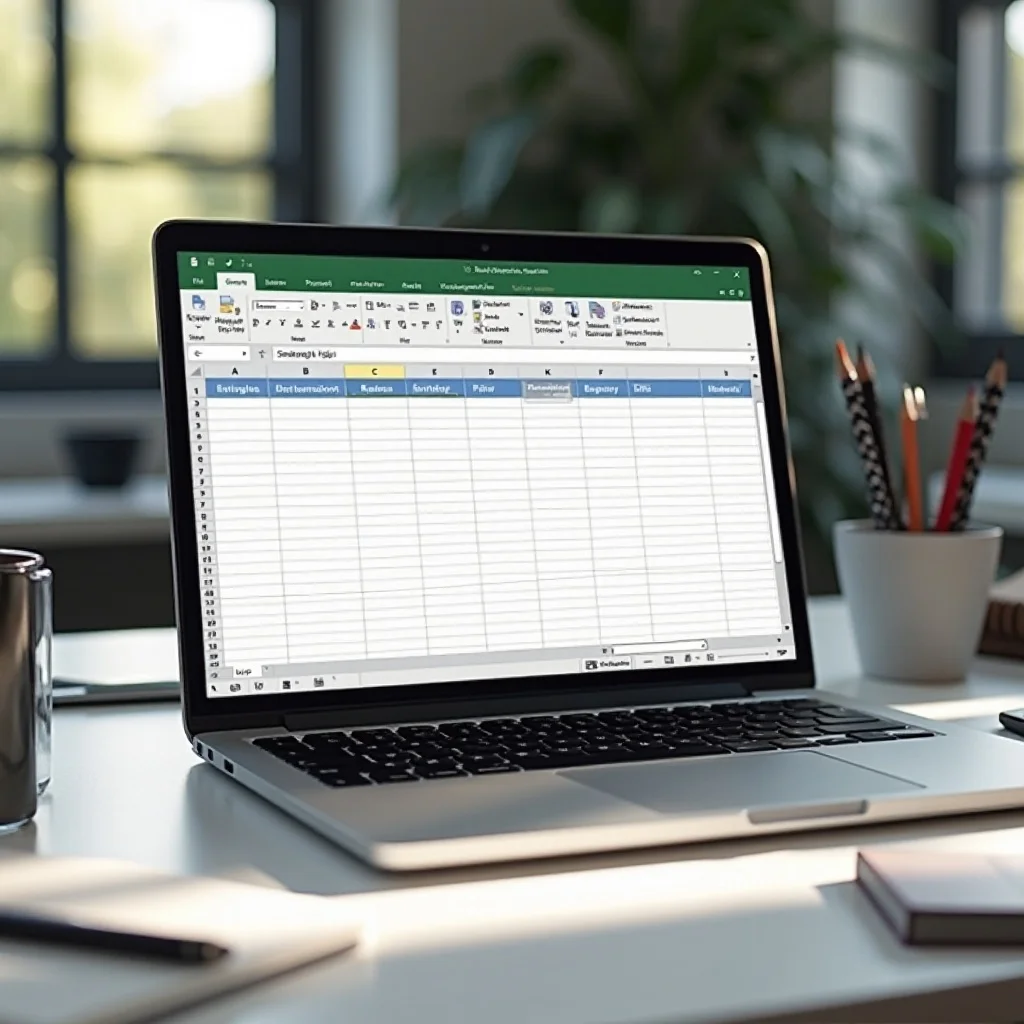
Advanced Tips for Saving Multiple Sheets as One PDF
Sometimes, you may need to save an entire workbook with multiple sheets as one PDF. Excel allows you to combine multiple sheets into a single PDF, making it easier to share or print. Here’s how to do it:
How to Save Selected Sheets to a Single PDF
To save multiple sheets from your Excel file as a single PDF, follow these simple steps:
- Open your Excel file and select the sheets you want to include.
- Hold down the “Ctrl” key (or “Command” on Mac) and click each sheet tab.
- Go to the “File” tab and click “Save As.”
- Choose PDF as the file type and hit “Save.”
This method ensures all selected sheets are saved together in one PDF file.
Using the "Options" Button to Fine-tune Your PDF
Before saving your Excel file as a PDF, Excel offers an “Options” button that allows you to adjust how your data will appear in the PDF. You can decide what to include, such as specific pages or hidden worksheets. Here's how:
- Open your Excel file and click “File” > “Save As.”
- Click the “Options” button in the Save As dialog.
- Make your selections, such as choosing which pages or sheets to save.
- Click “OK” and save the PDF.
This gives you more control over the final output, allowing you to include or exclude specific content.
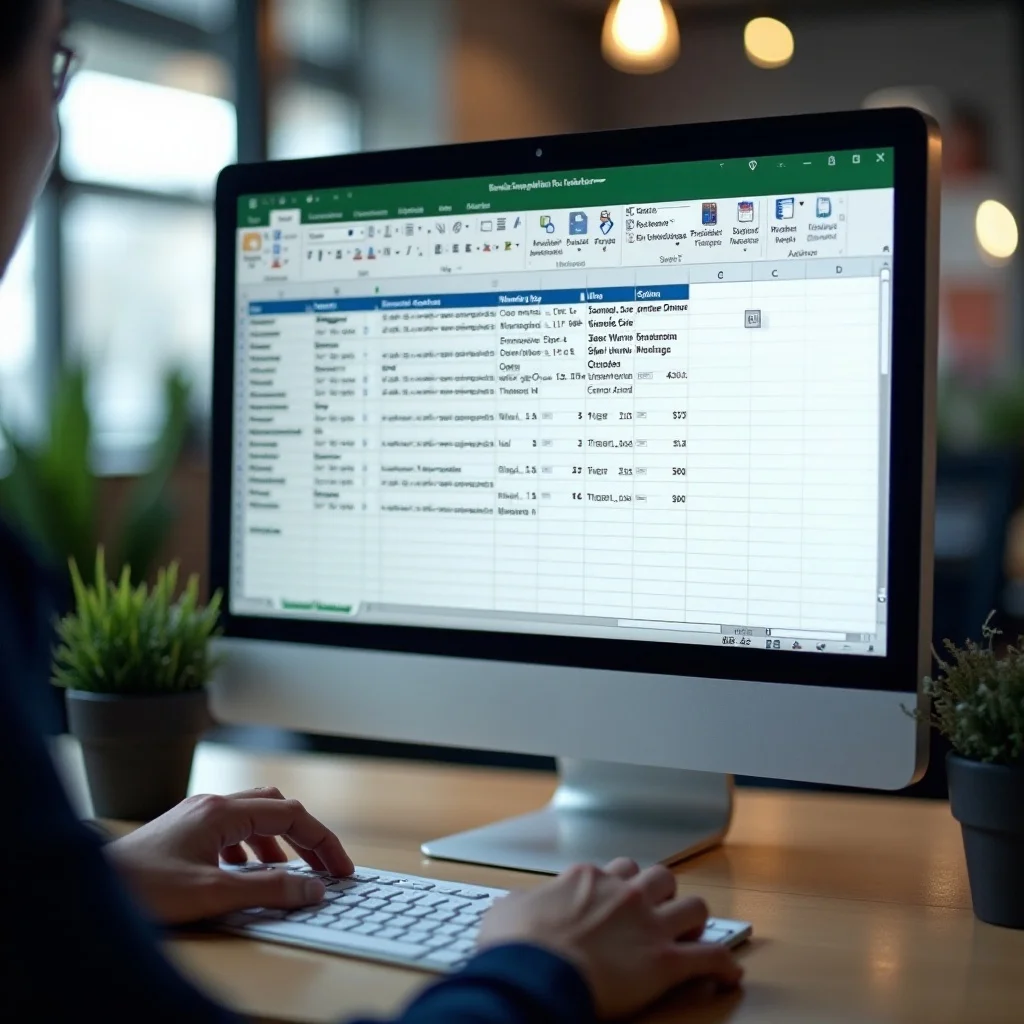
Key Adjustments to Make Before Saving as PDF
Before hitting "Save," it's a good idea to adjust some settings to ensure that your PDF looks perfect. These key adjustments can make a big difference in the final appearance of your PDF.
How to Choose the Right Page Layout
Choosing the correct page layout is essential for making sure your data fits neatly on the page. You can adjust settings like paper size, margins, and orientation from the "Page Layout" tab. For the best results, make sure the layout works well with the type of data you're presenting.
Including or Excluding Gridlines in Your PDF
Gridlines can make your data easier to read, but you may not always want them in your PDF. If you want to include gridlines, simply check the “Print Gridlines” option under the "Page Layout" tab. If you don’t want gridlines, uncheck this option before saving.
Scaling and Margins for the Perfect PDF
Scaling and margin adjustments can ensure that your document fits perfectly on the page. You can scale your Excel document by going to “Page Layout” and selecting “Fit to One Page.” You can also adjust the margins to your liking. These adjustments help prevent your data from getting cut off in the final PDF.
Common Issues When Saving Excel Files as PDFs
Even though saving Excel files as PDFs is generally straightforward, some common issues might come up. Below are a few things to watch out for when converting your files.
Prevent Data from Being Cut Off
A common issue when saving an Excel file as a PDF is data getting cut off at the edges of the page. To prevent this, check that the data fits within the page layout. You can adjust scaling settings to ensure that everything fits, or break the content into multiple pages if necessary.
Dealing with Print Quality Issues
Sometimes, print quality problems can occur, like blurry text or distorted formatting. This is usually a result of using the wrong PDF settings or print settings. To fix this, make sure you choose the “Best” quality setting in the Export method or adjust the print settings before saving your PDF. If you’re using the Print to PDF method, ensure the page size and margins are set correctly.

Conclusion
Knowing how to save Excel as PDF is a handy skill that can save you time and ensure your files are easy to share and print. Whether you're using the "Save As" method for a quick conversion or the "Export" method for high-quality output, these techniques will help you get the best results every time. Adjust the settings as needed to suit your specific needs, and you’ll be able to convert your Excel files into PDFs in no time.