Splitting a PDF file can be a game-changer in many situations. Whether you need to extract certain pages, reduce the file size, or just organize a long document into manageable chunks, learning how to split a PDF is a must-have skill. In this guide, we’ll walk you through simple and effective ways to split PDFs using both online tools and desktop software. With clear, step-by-step instructions, you'll be able to manage your PDF documents like a pro.
Why Splitting a PDF Is Helpful
Splitting a PDF into separate files can make life a lot easier. Whether you're working with a massive report or organizing a PDF-heavy presentation, breaking things down into smaller, more manageable files can save time and hassle. Some of the main benefits of splitting a PDF include:
- Better Organization: It’s easier to find and share specific pages, especially when you're dealing with lengthy documents. You can split by chapters, sections, or any other logical divisions.
- File Size Reduction: Large PDFs can be a pain to share, especially via email or cloud services. Splitting a file into smaller parts makes sharing easier and reduces upload times.
- Easier Printing: When you only need specific pages, splitting your PDF can save printer ink and paper, not to mention your time.
- Increased Flexibility: Split PDFs let you extract only the information you need, which is ideal for reports or research papers.
Whether you're splitting a PDF for work, school, or personal use, knowing how to separate PDF pages is an essential skill that can make managing documents a lot easier.
2 Easy Ways to Split a PDF
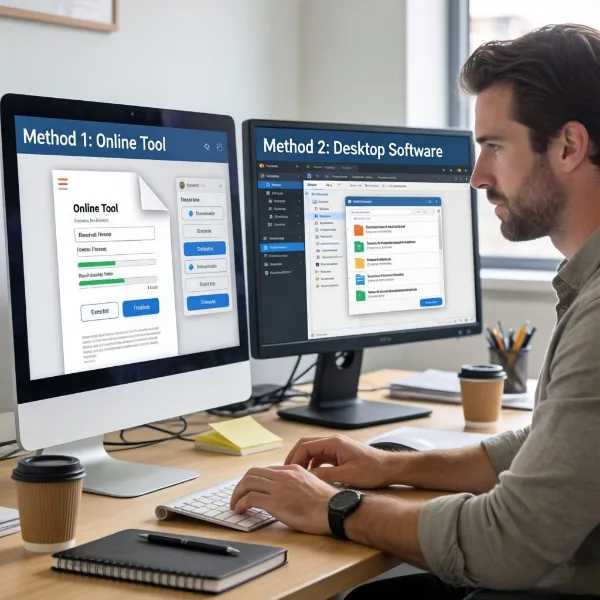
When it comes to splitting PDFs, you have two main choices: online tools or desktop software. Each method offers its own advantages, so let’s explore both.
Use Online Tools (Fast, Simple, and Convenient)
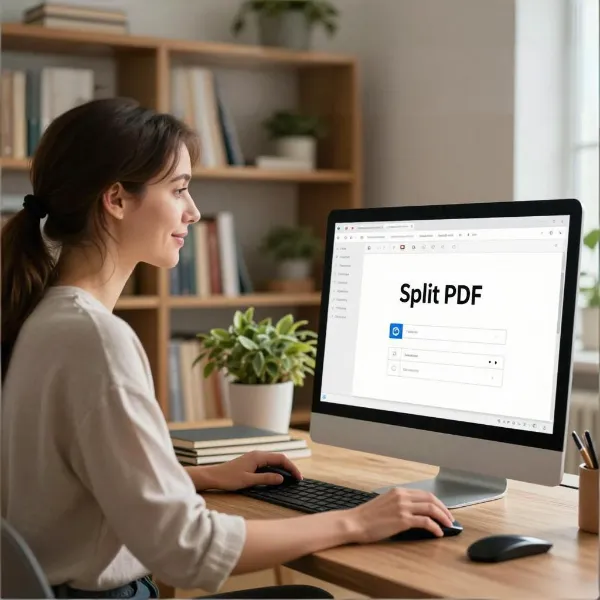
Online PDF splitting tools are a great option if you're looking for a quick, no-fuss solution. These tools are easy to use, often free, and don't require any software downloads. Some popular online options include iLovePDF, Smallpdf, and PDF Split and Merge Online.
Steps to Split a PDF Using an Online Tool:
- Choose Your Tool: Head to a site like iLovePDF.
- Upload Your PDF: Click the "Select PDF file" button and upload the file from your computer or cloud storage.
- Select Split Option: Decide if you want to split the PDF by individual pages or extract specific page ranges.
- Download the Split Files: Once the split is complete, you can download your new, smaller PDFs.
Why Choose Online Tools?
- Quick and Easy: No downloads or complicated installations—just upload your file and split it.
- Free to Use: Many online tools offer free services with basic PDF splitting features.
- Accessible Anywhere: You can use these tools from any device, making them perfect for on-the-go splitting.
Use Desktop Software (For More Control and Advanced Features)
If you're dealing with more complex PDFs, desktop software can give you more control over how your file is split. Programs like Adobe Acrobat Pro and PDF-XChange Editor offer advanced features, such as splitting by file size, page ranges, or even bookmarks.
Steps to Split a PDF Using Desktop Software:
- Install the Software: Download and install a desktop PDF editor like Adobe Acrobat Pro or PDF-XChange Editor.
- Open Your PDF: Launch the program and open the PDF file you want to split.
- Select Split Tool: Go to the "Organize Pages" or "Split PDF" section of the program.
- Choose How to Split: You can split by specific pages, page ranges, or even based on bookmarks.
- Save the Split Files: After splitting, save your newly created PDFs to your computer or cloud storage.
Why Choose Desktop Software?
- More Control: Desktop tools allow you to fine-tune your split, giving you options to split by page range, bookmarks, or even specific file sizes.
- Extra Features: Programs like Adobe Acrobat Pro come with a host of additional features, such as file compression and editing options.
- Offline Functionality: Once installed, you don’t need an internet connection to use the software, which can be a plus for privacy.
Key Notes and Tips for Splitting PDFs
Before you start splitting your PDFs, here are some useful tips to keep in mind:
- Check for Password Protection: Some PDFs are password-protected. If you don’t have the password, you won’t be able to split the file using most tools.
- Backup Your Original File: Always keep a copy of the original file before making any changes. This ensures you can recover the document if something goes wrong.
- Consider File Size: If you're splitting a large PDF for sharing, remember that smaller files are easier to handle. Choose a tool that lets you split by size if that’s important to you.
- Preview Before Splitting: Many tools allow you to preview how your PDF will be split. Take advantage of this feature to ensure you’re splitting it in the right way.
- Use the Right Tool for the Job: Online tools are fast and simple, but desktop software may be better if you need more customization or are working with larger, more complex documents.
Conclusion
Learning how to split a PDF is a useful skill that can save you time and make your documents more manageable. Whether you opt for an online tool or desktop software, both methods are simple and effective ways to divide your PDF files. With the right approach, you can easily separate pages, reduce file sizes, and organize your PDFs to meet your needs. Always back up your original file and choose the best tool based on your needs for optimal results.